Free
- Send and receive files locally
- QR scanner and 4-digit code
- Background transfers and history
- Six themes
- A banner ad on the home screen (Android)
 FileDrop
Send files instantly over your local network: fast, private, on the same Wi-Fi. No account, no sign-up, no server in between.
Received files
Try a transfer
Fast-forwarded simulation: the real speed depends on your Wi-Fi network.
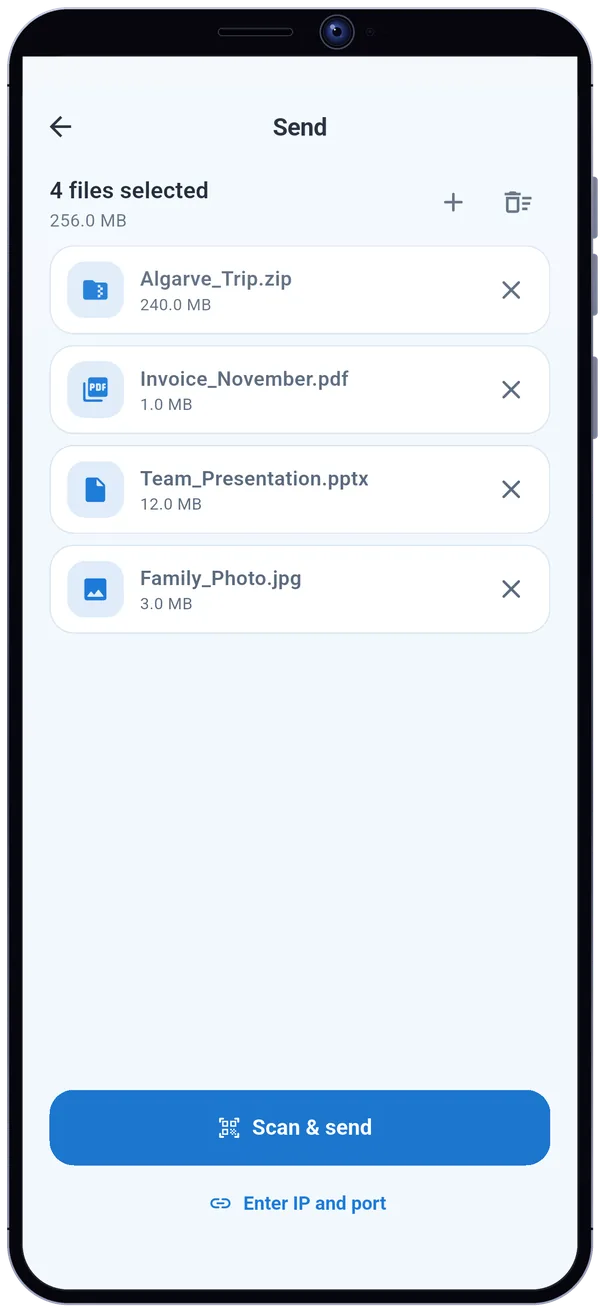
Five screens, no setup. Tap a step to see the matching screen.
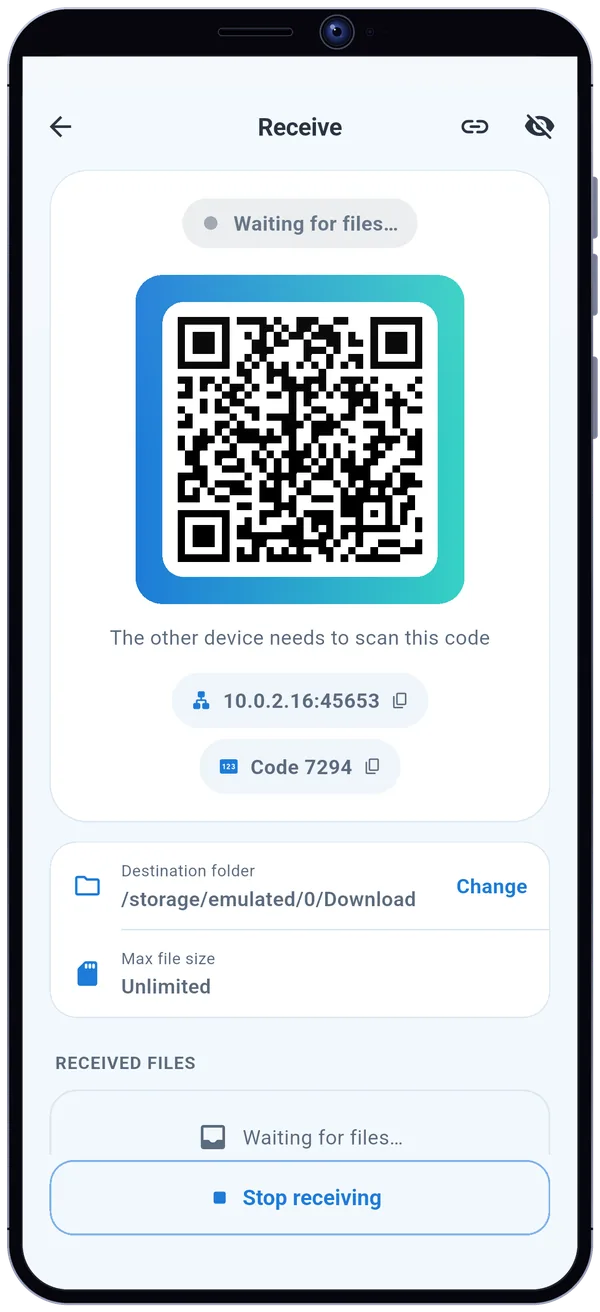
The Send and Receive screens are redesigned.
Point the camera at the receiver and go.
Send files from Android's Share menu.
They keep running when you leave the app, with a progress notification.
A summary screen after every send, and your past transfers gathered in the history.
A secret QR code and a 4-digit code protect every reception.
Leave a review straight from FileDrop.
Ocean, Forest, Midnight and Lavender.
French, English, Dutch, Spanish and Portuguese.
A guide in “About” to get started.
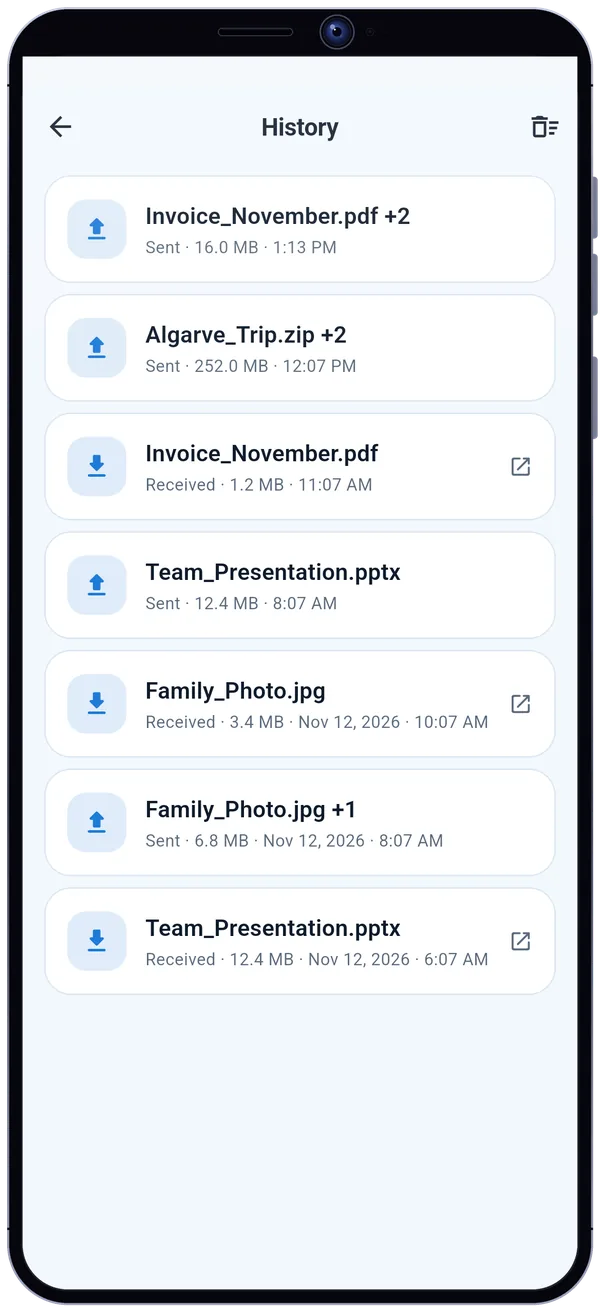
Every send and every reception is listed with its name, size and time, and a shortcut opens the received file.
Every reception creates its own secret: a secret QR code and a 4-digit code for manual entry.
Six themes are included, four more are Premium-only. Tap one to preview it.
Send files instantly over your local network
Fast · Private · Same local networkSunset
A one-time purchase.
The desktop client for Windows and Linux is free and ad-free.

The FileDrop desktop client lets you receive files straight on your computer from your mobile devices, making it easy to move documents, photos and other files.
FileDrop transfers photos, videos and files between devices on the same Wi-Fi network. No cloud, no account, no cable: your files stay on your local network.
The principle takes a few taps: open FileDrop on both devices, tap “Receive” on one of them, scan its QR code (or enter its address and 4-digit code), then send. Every reception has its own secret, the transfer keeps running in the background with a progress notification, and a history keeps track of your transfers.
FileDrop is ideal for sending photos from one phone to another, sharing files with a computer or moving videos without USB or Bluetooth. The app is available on Android, Windows and Linux, in French, English, Dutch, Spanish and Portuguese.
Practical guide : Transfer files between phone and PC without a cable or the cloud
Install FileDrop on both phones, connect them to the same Wi-Fi, tap “Receive” on one, scan its QR code with the other and send: no cable, no Bluetooth, no cloud.
Use FileDrop on the phone and on the computer (Windows or Linux): no USB cable, no Bluetooth, no cloud. You only need to be on the same Wi-Fi network.
Transfers go straight over your local network, without uploading then downloading again: the speed therefore depends on your Wi-Fi network.
Yes. By default, no per-file size limit is imposed: you can send long videos as easily as photos.
Every reception creates its own secret: a secret QR code and a 4-digit code for manual entry. That code locks after 5 mistakes, and the QR code keeps working.
Yes. From another app, choose “Share” then FileDrop to send the selected files.
Yes. Transfers keep running in the background, with a progress notification.
Make sure both devices are on the same Wi-Fi network (not on separate guest networks), then enter the receiving device's address and code manually if the QR code does not work.
No, they only travel across your local network: no account, no cloud storage and no tracking.
Yes, with a banner ad on the Android app's home screen. A one-time Premium purchase removes ads and unlocks 4 exclusive themes. The desktop client is free and ad-free.
 Download for Windows